
Last updated: 27 August 2026
If we're unable to resolve your problem through a support ticket, we may offer remote support.
Remote support allows one of our technicians to securely connect to your computer so we can see the problem and, with your permission, control the device to help resolve it.
Before we can connect, you'll need to download and install the NAH Support app.
|
Using Windows? |
Step 1 – Download the NAH Support app
On your Mac, click the link below to download our remote support application:
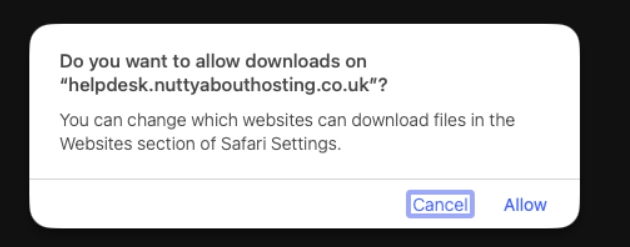
Your browser may ask for permission to download the file. If it does, click Allow.
Step 2 – Open the downloaded file
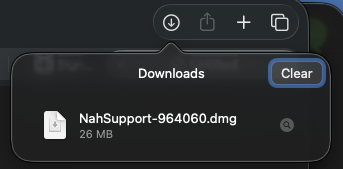
Once the download has finished, open your Downloads folder and double-click the downloaded NAH Support file.
Step 3 – Install NAH Support
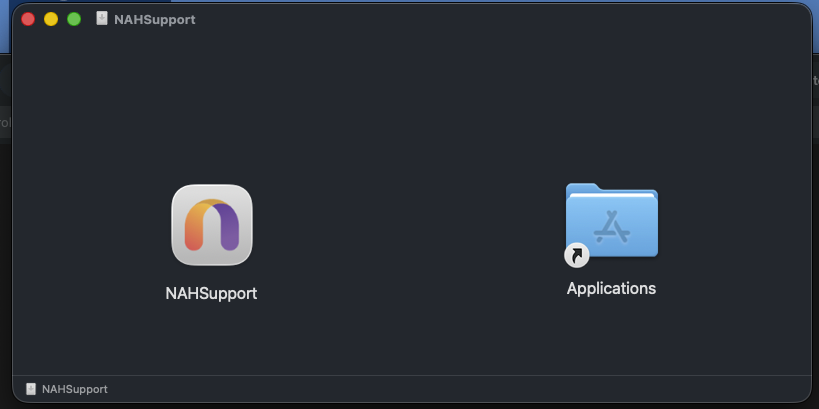
A window will appear showing the NAHSupport icon and your Applications folder.
Drag the NAHSupport icon across to the Applications folder.
Once installed, open NAHSupport from your Applications folder.
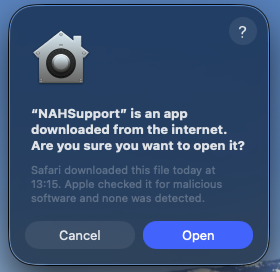
Your Mac may display a message explaining that the application was downloaded from the internet. Click Open.
Step 4 – Send us your support code
When NAH Support opens, you will be shown an eight-digit support code.
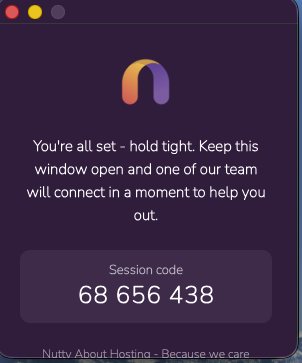
Please send this code to us in your existing support ticket.
Your connection is still under your control✅ Giving us the support code does not automatically give us control of your computer. ✅ You will still need to approve our connection on your Mac. ✅ Only give your support code to a Nutty About Hosting technician through your genuine support ticket. |
Step 5 – Allow the technician to connect
Once our technician enters your support code, your Mac will ask you to approve the connection.
Click Open or Allow when prompted.
macOS may also ask you to give NAH Support permission to view or control your screen. Enable the requested permission so our technician can assist you.
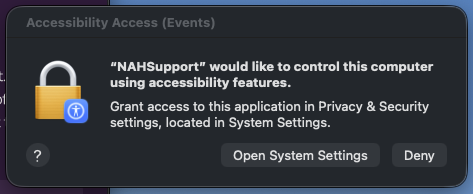
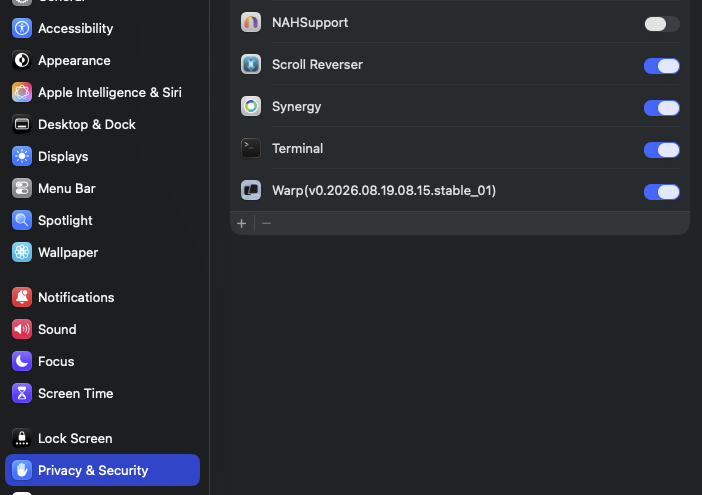
Once access has been approved, our technician will be able to connect and help investigate the problem.
When we've finished
Once the support session is complete, you can close the NAH Support application.
If you no longer want the application on your Mac, you can remove it from your Applications folder after the support session has finished.
Having trouble?
If you get stuck at any point, simply reply to your existing support ticket and let us know which step you're having difficulty with. We'll be happy to guide you through it.